


PawPrint.net News
Technobloggle
Technology Blog from PawPrint.net all manner of news and reviews for small business and any computer user
February 19th, 2014
February 19th, 2014
- 1 Chirp
- By: Scott Baker
Power Mixer
Siftware Review: Better control over your windows audio
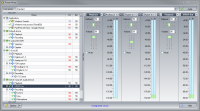
Power Mixer Control Deck
When I find good software I like to share it with others - especially little gems like this that are somewhat difficult to find.
In my case I was looking for something to help manage the 5 different audio devices in my primary system + 4 more in my secondary that is also linked through to the primary via SPDIF. I wanted more control per-application on both systems and adjusting for different sets of volumes with a bit of metering.
The windows mixer can do a lot of that already but for me it had some major problems. The volumes for all the various applications are linked so when you turn down the main output volume it dynamically reduces all the others as well. I have a few rails that are kept very low (speech output for notifications in growl for example) so turning down the volume effectively muted these. Then turning the volume up again didn't restore them since they had already hit zero.
Power Mixer solves all this by allowing "Presets" so you can create preset batches of volume setting across any applications and devices that you want. You can also control master-fader volume completely independently from any others and, the best part, build your own deck of meters and faders for any application/device you want. Finally it allows you to add hotkeys to control all this - which when combined with something like AutoHotKey it gets really interesting - especially when dealing with multiple systems. I'm sure I have yet to truly find the best automation between the various systems and linking hotkeys for volume set control.
The interface is intuitive and it's lean on resources. So if you're looking for a bit more control over your system audio give Power Mixer a try. It's about $20 to purchase but has a 14 day eval to try it out.
Learn more at the developer's Web Site:
http://www.actualsolution.com/power_mixer/
September 25th, 2012
September 25th, 2012
- 1 Chirp
- By: Scott Baker
A Google Maps App won't help iOS6
So why is nobody asking about a Google Maps Library

Sechelt BC looks like a targeting computer in Apple Maps
As one of the fortunate few that have both iOS and Android devices for testing, I must say in the span of 3 years, I have only ever actually used a "maps app" one time - and that's across both ecosystems - and that was just to get a satellite view during a bike ride - for fun. If I need a map to find where I'm going - I go to my desktop and the maps.google.com web page before I leave my home (as any good navigator will tell you - "if you don't know where you're going... you better not leave the dock!") However, for the less then good navigators among us: That exact same data can be easily accessed from any device, anywhere that I can browse to a web site and probably through shared bookmarks (nobody seems to talk about Apple Maps' total lack of that option either - but that's another story). Realistically, any dedicated maps app... in short, could be considered a boondoggle.
So what really is the problem?
The massive problem with the new Apple maps is not the app. Even if Google had a native iOS6 maps app right now it would change very little: since almost everything that was available in the maps app before is already available on the Google Maps web site (and I bet they are rushing to beef that up right quick!) so there is little lost with the Google app. The real problem is all the other apps that are now horribly crippled by Apple's abysmal mapping data. I don't care that the maps app is junk on my iOS6 device but I very much do care that the map in my weather forecast app's radar image on my iPad is a monochrome blob.To put it bluntly - the problem is the API & Data not the Maps App at all!
When it comes to dedicated maps apps - I like many others don't' need them... What I do use, many times every day, are countless other apps that incorporate mapping. Now all those apps - every single one of them in iOS6 just received a major downgrade. The only solution for iOS would be for Google to release, not an app, but a developer library. Something that will allow all the app developers to get real mapping back into their apps on iOS. The question that nobody seems to be asking is... will Google do that?
Where does this leave us?
Apple just dealt a serious blow to every single app on the iOS platform that uses their internal maps. Instantly rendering their Android counterparts far superior. Google might be banking on that to help push people over to the Android platform. It's a big gamble - but data is very hard to come by. Google has a multi-year head start in maps... despite Apple hiring many X-Googlers: that still won't bring Apple the data they are desperately lacking. I can't state this clearly enough - Apple's Tech, Code, and Concept are totally fine... Their data... compared to Google's is basically hand-me-down junk and Google is collecting new data every day - lots of it.It's surprising most of the mainstream tech blogs are not addressing this. They seem focused on asking if Google will release a Maps app and/or speculating when, but really this is a relatively unimportant question - seriously, Who cares?
What they need to be looking at is: has Apple shot themselves in the proverbial foot? Only time will tell, as only time will tell if Google might be making a very smart decision to focus on their web based maps, not release a library, and ignore any further iOS apps in favor of their web site - thereby hoping to draw map based apps off iOS and into the Android ecosystem as their primary avenue for development.
Sure iPhone 5's are selling like hot cakes (in North America anyway)... most people are basically sheep, buying what is being positioned as the "next thing" - and when they find that the phone touted as something that "just works" actually "doesn't work" for mapping; Will they still want the iPhone 5S or iPhone 6 when they arrive - will Apple pull their map data out of the quagmire in time? - that's the real question...
Regardless of what the future holds, as it stands, every single app on the iOS platform that uses mapping, is now, in a way, an advertizement for Google - the Android version is instantly and inherently better then the Apple one - thanks to Apple's own direction.
The Future
Will Apple Maps be able to get good enough, fast enough to actually be useful... and Should Google bank on the pains of Apple Maps being enough to draw people away from iPhone 5S and 6 to Android or should they release a developer library for iOS and try to gain developers back... That is a real question.Then, try this twist... Perhaps Apple is actually counting on developers to build their own library for Google Maps, knowing full well that their product offering is drastically inferior but saving Apple the licensing costs and instead handing that down to the developers, in a giant bid to save money and release them from a Google dependency by providing an alternative merely to say that they did, when in fact they don't actually expect people to use it in the long term.
Those are the tough questions nobody seems to be asking... It's going to be an interesting ride to see who's play is going to win this little battle in the never-ending saga of Apple vs Google childishness.
July 13th, 2012
July 13th, 2012
- 3 Chirps
- By: Scott Baker
Are you secure online?
In the wake of recent prominant site hacks - now is the time to update your passwords

Security is always a struggle between what is secure and what is easy. Most humans (this human included) like things to be easy, and sometimes we are willing to take some pretty big risks to keep it easy. As our digital world has begun to mesh more and more with our personal identity and some of the risks being taken in using week or multi-use passwords are exceedingly dangerous. There are, however some simple rules for living a more secure digital life when it comes to passwords:
- Never use the same password for everything
- Never share your password with others
- Use password management software if you have a lot of passwords to deal with
- Change passwords periodically
- Create a strong password
This last rule is what tends to cause the most trouble for people, believing that strong passwords will be too difficult to remember. To help with that here are some tips to help you create easy to remember yet strong passwords.
First some dos and don´ts
- Don´t use just a word
- Don´t use just numbers
- Don´t use your phone number, birth date, or address, (or anything else like that)
- Do mix upper and lower case
- Do mix letters and numbers
- Do use a longer password (more then 12 characters is best)
- Do add a special character if possible (punctuation)
That may sound like you´ll end up with a password that looks like garble and is impossible to remember! That´s only partially true - if we do our job right we will end up with a password that looks like garble, but is easy for you to remember.
The key: do not try to remember the password, instead remember the instructions for how to build it instead.
A possible Solution
Let´s say we are creating an account for Twitter, first we select a username and now we need a strong password:
Start the password with a couple numbers for example the first digit of your street address and last digit of your phone number. In my case:
password so far: 69
Next add a special character say "!"
password so far: 69!
Next add the initials of the site you´re signing up for - how many letters is up to you, but capitalize the first or last letter:
password so far: 69!Tw
Next add the number 4 to be read in your mind as ´for´
password so far: 69!Tw4
next add a word that means something to you (for this example I´ll use my first dog´s name)
password so far: 69!Tw4taffy
Finally, because you´ll be changing this password periodically add some component of the date. If you plan to change it monthly add the month, if you plan to change annually add the year:
Finished Password: 69!Tw4taffy2012
That is a very secure password and it´s specific to a single service and time period - but, it´s easy to remember because I just need to remember how I build it - not all the garble. Using the above rules we could create several passwords for common services, for example:
Google Plus: 69!G+4taffy2012
Facebook: 69!Fb4taffy2012
Obviously you should create your own set if rules and use them to create secure passwords for any service. Other ideas for things you can include in your passwords:
- l337 Speak (changing letters for numbers such as 3 for E, 1 for i and 7 for t)
- Old phone numbers and addresses
- Your age or your spouse´s (changes every year)
- Reverse the service name (eg; Twitter becomes Rettiwt)
- Use a pass-phrase rather then just a word eg: "In 2012 my pa$$w0rd is longer"
You can be even more secure then this if you want by allowing your password management software to auto-generate truly random passwords for critical things like your bank account, pay pal, domains, etc.
Need some password management software? Try KeePass. It´s free, cross platform and you can even get mobile apps that allow you to take your passwords with you. It´s basically a highly encrypted database of all your passwords that needs a master password to unlock it.
Check If You Are Safe
While you shouldn't rely on a check like this as it only records already compromised passwords - it may help to have a look at ShouldIChangeMyPassword.com This website will compare your email address across all known security breeches to see if your password may already have been hacked.Be safe online and off
July 5th, 2012
July 5th, 2012
Synching iPhone, iPad, Android, Mac, and Thunderbird
Finally a reliable contacts and calendar sync for the most common desktop and mobile devices

First, for those that don´t want to use Gmail to achieve this goal - I can´t help you. I have tried many solutions over the last 3 years to find a way to keep my data OFF the cloud but basically they are all to unreliable to be trusted. So this method will rely on sharing your data with Google - if you don´t like that, might as well stop reading now.
Asumption: you have a Gmail account already - otherwise you´ll need to signup for one
Asumption: You want to use Thunderbird for desktop mail. If you don´t then you can just skip that part and everything will still work fine for sync between mobile devices and Gmail
Step 1: Prep Thunderbird:
If it isn´t already install the "Lightning" addon for Thunderbird (part of the default now) This will allow the calendar to sync to Google.
You will need the Zindus Add-on Download and install that in Thunderbird. This will allow contacts to sync to Google.
Configure both the above addons to sync to your Gmail account.
Step 2: on iOS devices:
Turn OFF iCloud sync for contacts - this might seem counter intuitive but it´s critical. We can leave it to the conspiry theorists to figure why you need to do this (and moreso the next part) but iCloud and Google contacts sync don´t play together - go figure.
For iPhone, iPad, iPod go to Settings under Mail, Contacts, Calendars and create a new Mail account for, wait for it: Microsoft Exchange (yes that´s right you need to use the Microsoft Exchange setting to sync contacts from Google to Apple devices - the mind boggles) Fill out the form as follows:
Email: your gmail address
Domain: blank
Username: your gmail without the "@gmail.com" part
Password: (guess what goes here)
Description: whatever you like.
Click next and it will come back and add one more box for:
Server: m.google.com
Click next again and you should be able to choose what to sync. If you are already syncing Gmail using a normal gmail account setup then don´t sync mail or calendars again here or you´ll confuse things. I therefore recommend you only sync contacts this way. After you complete the account setup ive your device some time to update everything.
Follow this same setup on all your iOS devices.
Step 3: On a Mac
This one is more straightforward just go into the addressbook and Preferences. Select "On My Mac" and follow the straightforward "Synchronize with Google" option.
Step 4: For Android:
If you even once used the Google Play app store you´ll have your gmail account linked to your device already. Unless you changed something the contacts, calendars and mail will already be syncing. You can adjust that in the "Accounts and Sync" part of the settings for the device if need be. I had to restart my old Milestone phone to get the change to actually "kick in" the first time.
End Result
Managing contacts on any of these devices will sync to all the rest. Updates seem to be pretty quick most of the time and I haven´t encountered any errors. Gmail´s contact manager has a great tool for duplicate reduction too - I recommend that for cleaning things up.May 10th, 2012
May 10th, 2012
PHP 5.4 Gotchas for Developers
A few fixes/enhancements might cause you some grief

Call Time Pass By Reference prohibited:
I found 3rd party code (bank payment processing) that had call time pass by reference.
It failed with no errors & no warnings until I tested the specific include with php -l Otherwise there is no error just silent failure - and when that is deep in external code it´s a nightmare to find. To fix it: just remove the & they are no longer necessary.
max_input_vars:
This is a new setting (since 5.3.9) that can only be adjusted in the php.ini .htaccess, or httpd.conf locations. It sets the maximum number of variables (including array elements) that can be sent to the server at one time and is defauled to 1000 (they did this to prevent hash collision attacks). The gotcha here is if you have a large form with many options in it $_REQUEST or $_POST can easily surpass that quantity of elements. What makes it worse, the error you get will likely show up in your web browser as client side generated
Unsupported Compression Type
- NOT easy to diagnose. You can only find it if you check the errors_log and see things like this: PHP Warning: Unknown: Input variables exceeded 1000
Hope these help you in your PHP travels.
April 30th, 2012
April 30th, 2012
- 1 Chirp
- By: Scott Baker
Mousewheel Jog/Shuttle in Steinberg Nuendo 4
Overcome a gap in the Nuendo UI on PC using this Key assignment/AutoHotKey script
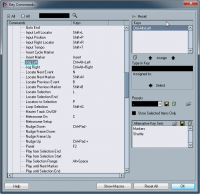
Basically it´s a two part process
1) Assign keyboard shortcuts in Nuendo to the left and right Jog functions.
2) Assign a modified mouse wheel scroll to those key shortcuts via an AutoHotKey script.
I´m not going to go into details of why all this works but just jump to what you need to do to make it work. Feel free to jump in via comments if you have questions.
In Nuendo
I tested this in Nuendo 4 but it should work in other versions as well.- Go to File | Key Commands... and scroll down to the "Transport" set (folder) of functions
- Select "Jog Left"
- On the right clicn in the grey box just below where it says "Type in Key" and then depress Ctrl+Alt+{left arrow}
- Click the "Assign" button just above the box and you should see this shortcut assigned to Job Left over on the left hand side now.
- Repeat the process for the Jog Right and assign Ctrl+Alt+{right arrow}
- Click "Ok" to accept the changes and close the window
Ctrl+Alt+direction was selected because it was not assigned by default in Nuendo to anything. You should now be able to use those key shortcuts to jog left and right frame by frame. This in itself is quite handy for getting around on the timeline. You can even hold down the shortcut in the forward direction and you´ll actually get a realtime playback speed thanks to key repeat. For some reason jogging backwareds (for me anyway) was much slower then forwards - this could be a limitation of the video I had playing back as well.
So far everything we have done will work on a Mac (command+option instead of ctrl+alt) and PC.
AutoHotKey Script Control for Mousewheel Jog
Unfortunately for Mac users, this part only works on PC since AutoHotKey is a PC-only application.You will need to download and install the incredibly handy AutoHotKey application from:
http://www.autohotkey.com (I use this for all sorts of things and if you like keyboard shortcuts you´ll love learning all that this can do for you)
You can leave Nuendo open during this process and you won´t need to restart your system.
- Install the application and run it.
- When prompted if you would like to create a default script select "Yes"
- Add the following two lines to the bottom of the text window:
!WheelUp:: Send ^!{Left}
!WheelDown:: Send ^!{Right}
- Run AutoHotKey again
- Hold down ALT and scroll with your mouse and you should jog on the timeline.
There you have it. Hope that helps.
More Items...
April 23rd, 2012
April 23rd, 2012
Bitrates and Codecs and Bandwidth Oh My!
Starting a primer into video encoding

January 30th, 2012
January 30th, 2012
Web Design in 1995
Inspired by a History of Web Design article

The Duke of Edinburgh´s Award Gold Award Society home page (c) 1995
January 30th, 2012
January 30th, 2012
Google, Facebook, Pay Pal, and others: anti-phishing email protocol
Can some of the web giants work together to help stop deceptive email?

January 29th, 2012
January 29th, 2012
PHP 5.4 nearing release
Help test some of the key changes in the PHP 5.4 release candidate

PHP 5.4 final release testing
January 19th, 2012
January 19th, 2012
What did the SOPAstrike accomplish?
after thousands of web sites went offline in protest - was anything acomplished?

January 10th, 2012
January 10th, 2012
Google Search Going Social
Google search now understands not only content, but also people and relationships

January 3rd, 2012
January 3rd, 2012
Use Klout to build your Social Network
Designed to measure your influence, Klout is also a great networking tool

August 30th, 2011
August 30th, 2011
Windows 7 Fresh Install Tips
Start right with some fresh install tips for Windows 7
August 1st, 2011
August 1st, 2011
Adobe Edge
Did adobe just kill Flash themselves?

Older Items...
2011
2010
2009
| RSS feed | Feed Description |
|---|---|
 All News RSS feed All News RSS feed |
Complete RSS feed |
| Technobloggle |
RSS feed for: Technobloggle |
| A Rich Site Summary (RSS) feed is an xml data file that provides a summary of the information contained here. It is not designed to be viewed in your browser, but instead by rss reader software. If you do not know what this means - you can safely ignore it, as it is provided for advanced users with rss reader software only. | |